
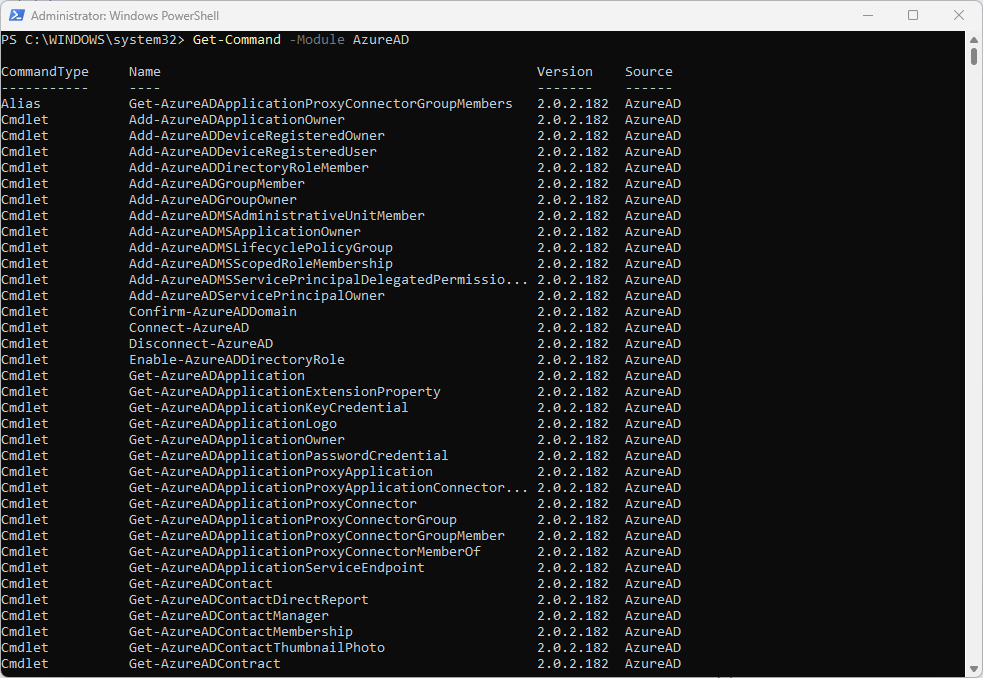
If you’ve ever used Windows, you’ve probably seen or heard about the Command Prompt, often referred to as CMD. It might look intimidating at first—a black screen with white text—but it’s a goldmine for getting things done quickly. Whether you’re troubleshooting issues, managing files, or just exploring your system, CMD is your go-to tool.
1. dir
Want to know what’s inside a folder? The dir command shows you a list of files and directories in your current location. Think of it as the CMD version of opening a folder in File Explorer.
Try it:
cmdCopy codedir
2. cd
This is short for “change directory.” It lets you navigate through folders without clicking around.
Example:
cmdCopy codecd C:\Users\YourName\Documents
If you ever get lost, just type cd\ to return to the root directory.
3. ipconfig
This one’s a lifesaver for network issues. Use it to see your computer’s IP address or troubleshoot connection problems.
Example:
cmdCopy codeipconfig
4. ping
Ever wondered if a website is actually down or it’s just you? The ping command sends small packets of data to a website to check if it’s reachable.
Example:
cmdCopy codeping google.com
5. cls
Made a mess on your CMD screen? Use cls to clear it up and start fresh.
cls6. mkdir
Need a new folder? Instead of right-clicking, just type mkdir followed by the name you want.
Example:
cmdCopy codemkdir MyNewFolder
7. rmdir
If you want to delete a folder, rmdir has your back. Add /s if the folder has files in it.
Example:
cmdCopy codermdir /s UnusedFolder
8. del
Accidentally saved an embarrassing file? Use del to get rid of it quickly.
Example:
del old_resume.docx9. copy
This command helps you duplicate files. Handy for making backups.
Example:
copy file.txt D:\Backup10. move
If you like tidying up your files, move will help you relocate them to the right folder.
Example:
move photo.jpg D:\Pictures11. sfc
Windows acting up? The sfc command scans your system for corrupted files and fixes them automatically.
Example:
sfc /scannow12. shutdown
Want to shut down or restart your PC without the Start menu? Here’s the trick:
- Shutdown:
cmdCopy codeshutdown /s /t 0
Restart:
shutdown /r /t 013. netstat
Want to see what your PC is connecting to online? netstat gives you a list of active network connections.
Example:
netstat -a14. tree
This one’s just cool—it shows your folders and subfolders in a tree-like structure.
Example:
tree15. fc
Have two similar files and want to compare them? fc highlights the differences for you.
Example:
fc old_version.txt new_version.txtThe Command Prompt may look intimidating, but it’s surprisingly easy to use once you get the hang of it. With these commands, you’ll be able to manage files and troubleshoot problems.